badge
Latest Posts
Browsing Category "Softwares"

How to send a Secured Encrypted Mail from Gmail?

- Saturday, November 15, 2014 No Comments
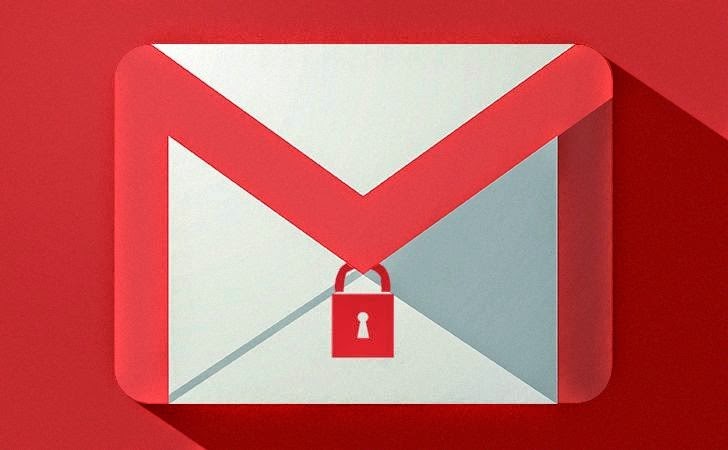
encrypt_gmail_account You might don't know that there is a very use trick to Encrypt any Email and send it to your Friend, by which you can make a secure email, which will not open unless you didn't decrypt that email which you have secured by giving a Decrypt Password.

Encryption can be done by using a very useful extension called "Secure Gmail" which only works in Google chrome web browser. This Extension will encrypt your Mail send from your Gmail account and to whom you send that Encrypted Email will receive a Weird Text, which wouldn't have any club to check out what is written inside that Mail, so to Decrypt that Mail. Mail Receivers have to give a Password Assigned by you to read that mail in a normal way.

Currently imagine somebody hacks into your Friends Gmail Account or somebody manages to intercept that email then you just don't need to Worry this Secure Gmail Extension will secure your Mail from all kinds of Threats and Hackers, Because without entering a correct password, there is no way to open and read that Email.

Now to do it, Here we Go... :)

1. "Secure Gmail" Extension is available for Free for Download form the Internet. Download Secure Gmail.
After you install this Extension, you may need to reopen your Chrome browser.
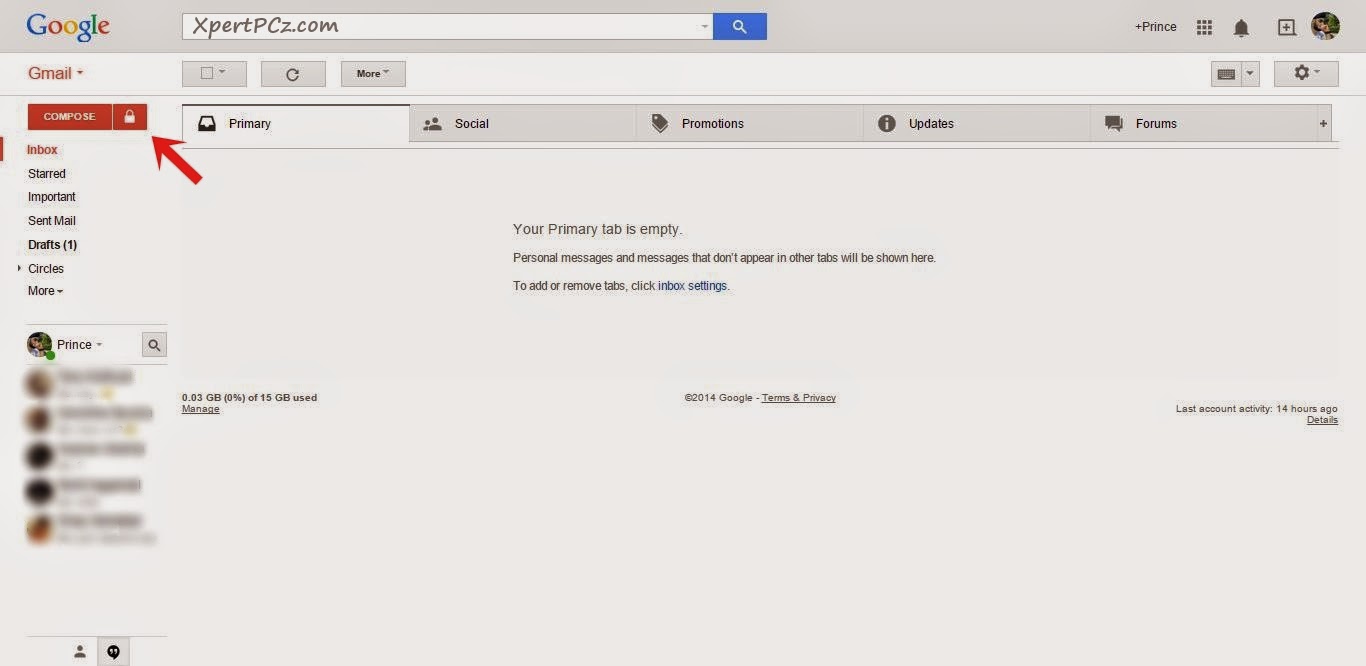
2.  Now open you Gmail Account, and there you will see a Lock button next to Compose button.
Gmail_with_encrypt_lock_button

3. Whenever you want to create Encrypted Email, then click on Lock button.
Type: "your_friends_Gmail_ID", Subject: "your_desire_subject" and type your: "Secret_Message."
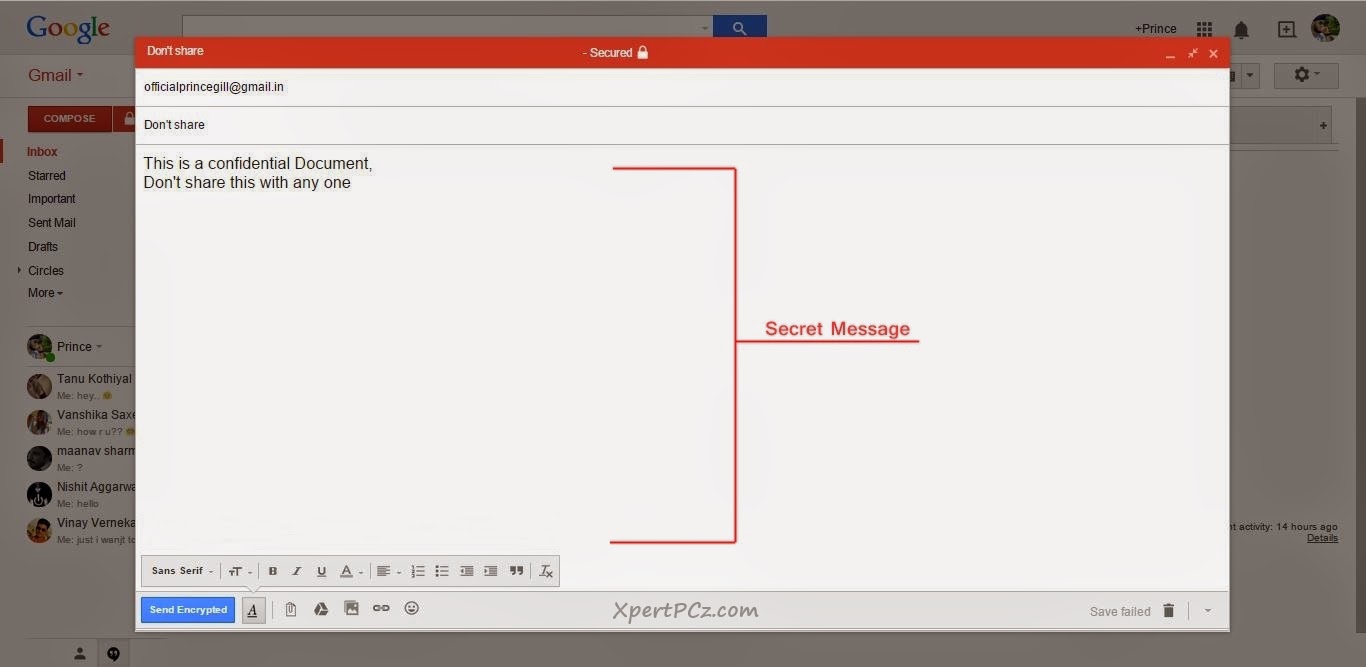
Encrypted_Mail_box

4. After you finish your typing, click Send Encrypted, then a pop window will appear saying to type your Encrypted Password and Hint, type that and click Encrypt and Send.

password_for_encrypt_your_Email

5. Important: now tell your Password to your Friends, so that he/she can Decrypt and read your Secret Message.

6. When he/she receives your Encrypted Mail then, it will look like this,

encrypted_Email

7. To Decrypt, Click on the Link above that weird Message saying Decrypt message with password, then Password Window will appear.

Password_to_encrypt_Email

8. Now when your friend type the Password which you have given in Step 4 then only your friends will be able to access that secret message.


Decrypted_email

Play Star Wars movie on CMD

- Saturday, May 24, 2014 No Comments

Command prompt (CMD)is one of the most powerful tool on almost all of the operating system.All graphical functionality actually implemented upon command prompt commands.But most of PC users ignore use of CMD.Today We (Xpert PCz team) are going to post trick where you can watch ASCII version of Star Wars movie on Command Prompt.

Star-wars-XpertPCz

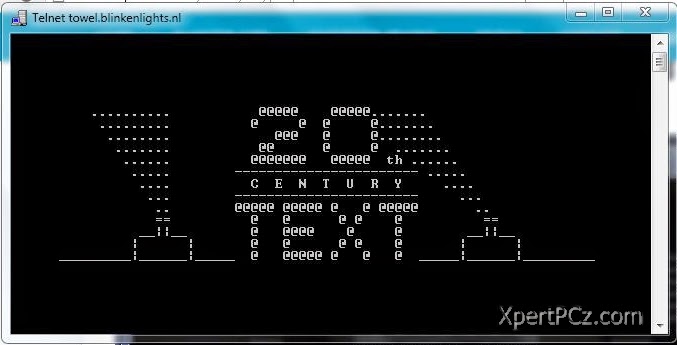
I guess most of us watched Star Wars movie on television, computer or in a theater. It is the same movie with aliens fighting each other for galaxies and such stuff. The same movie can be played on Command Prompt.

To be able to do this trick, you need an internet connection. No matter about speed, it can play even in 20 KB/sec bandwidth connection!

Requirement :-

Here We Go :-
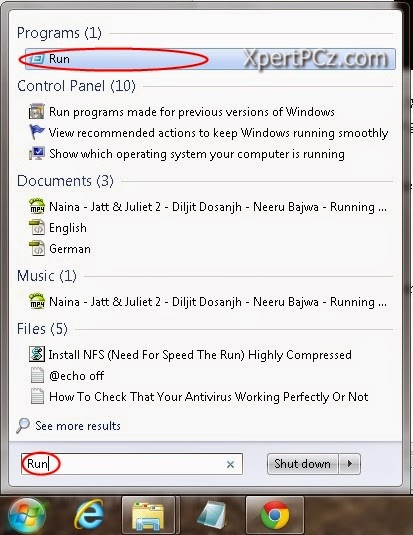
  • Open Start-> Run
preview-XpertPCz

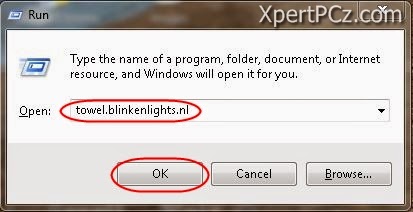
  • Now Type OR Paste "telnet towel.blinkenlights.nl" In Run Box And Hit Enter!
preview-XpertPCz    

  • Done,Your Movie Has Started (Not HD , But Interesting To Fool Friends! )

Watch Video Tutorial


How To Enable Telnet In Windows

- No Comments
I have been doing the "Star Wars Telnet Hack," on the computers at school. However, if I have been wanting to do it at home, on my Windows Vista / 7 / 8 or 8.1. So We searched around, and found how to enable telnet on Vista / 7 / 8 or 8.1 Platform.
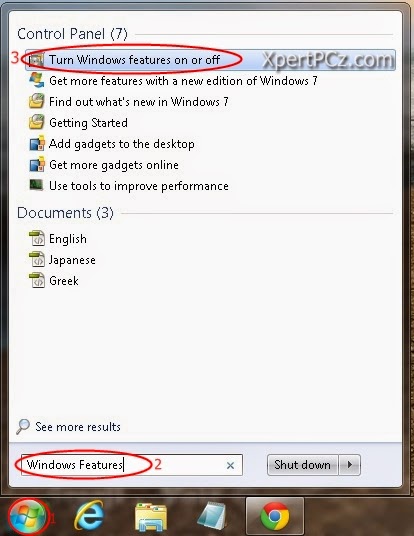
  •  Open "Start" Menu Search "Windows Features" 
start-Menu-XpertPCz
  • Click on "Turn Windows Features On or Off"
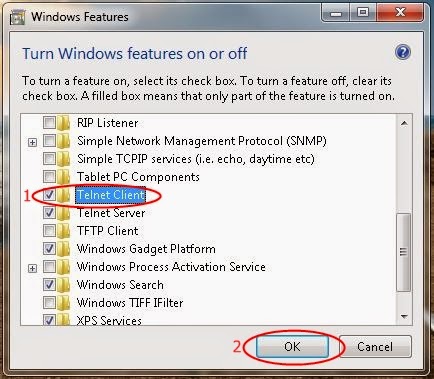
  • Now a new window opens. In the new window, Tick On "Telnet Client" And Click on "Ok". It Will Take Time To Setup.
Run-XpertPCz

Done, Now you Can use Telnet Service on your CMD.

Watch Video Tutorial:-


How To Download Android (*.apk) Files Directly on PC from PlayStore

- No Comments
andriod-XpertPCzHello friends, Today I am going to show you how to download android application games directly on your computer from Google android play store without actually having an android device with you. This trick has a lot of importance if you are not an android user but still want to enjoy apps or game using emulators such as BlueStacks/Android x86, you've. Moreover, you can't download android files from playstore without linking an android device with your Google account! Click here to know how to run android apps on PC.


Here We Go:-

  • Copy the URL of application or game page available on android store.
  • Click here to visit android apk downloading website.
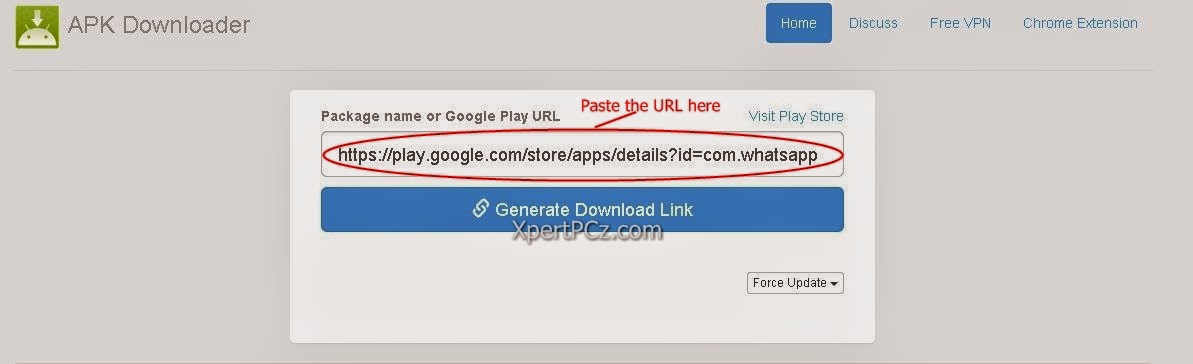
  • Paste the copied URL in text-box and click on "Generate Download Link".
preview-XpertPCz

  • They will fetch the file on their server. Delay will be dependent upon how big the target file is.
  • After getting package name and size of the package, click on download file.
preview-XpertPCz
  • Done, now enjoy the application or game on PC using emulators or keep as backup of application!

Watch Video Tutorial:-


How To Acces 2 or 3 Different FB Account On Same Browers

- No Comments
FB-XpertPCz

Hello! XpertPCz readers, Today We are going to Share a very awesome trick with you is of How to Access 2 or three Different Account on Same Browser, Weather it is of Facebook, Gmail, Twitter, Linked In or whatever.

We have taken example of Facebook for better understanding.

Note: Terms of use says, "Please be aware that managing multiple accounts is a serious violation of, Terms of Use. If we determine that an individual has more than one account, we reserve the right to terminate all of their accounts."

So, Follow our Step by Step Guide To manage different account on the same web browser

For Google Chrome Users

  • Open Google Chrome,
  • Go to Setting Icon.
  • Then, Click on "New Incoginto window" ( as shown in Picture below )
preview-XpertPCz

For Mozila Firefox User

  • Open Mozila Firefox,
  • Go to Setting Icon.
  • Then, Click on "New Private window" ( as shown in Picture below )
preview-XpertPCz
  • You can now enjoy Multiple accounts like Facebook, Gmail, Yahoo Mail, Twitter etc. One in Normal Window and other in Incognito/ Private window.

See Video Tutorial:- 


How to Fill Captcha Automatically

- Monday, May 05, 2014 No Comments
                       Fill_Captcha_Automatically_XpertPCz
We face many sites in our day to day web life. But in most of these sites we have to fill captchas to verify as human for any registration process.Some captcha are simple and easy to read. But some are headache and difficult to understand every time. So on that time this addon can help us a little bit. Because it automatically types the Captcha words automatically.

Here We Go:-

Download Browser Add-Ons

Install and login to your Rumola account
Then go to any site where you have to always fill captcha. It will take 5-10 seconds according to captcha type and automatically fill that captcha.

preview_Filled_Captcha_Automatically_XpertPCz

Their packages are costly. But anyone want to try this service they can try. Not necessary for all people. If you are expert in filling captchas , then you don't need this kind of addon.

How to chat with friends by Command Prompt

- Saturday, April 19, 2014 No Comments
Chat_With_Friends_By_CMD_XpertPCzHi Friends, Have you ever wanted to do something useful with command prompt like chat through a school's network or talk to your friend without having to download any fancy chat software? in your school or college where all the social Networking websites are block. Now you can with a few simple steps!, today we are gona tell you how to can stretch the limits of Command Prompt and use it as a messenger.


Required:

1. All you need is know your friend's IP Address.

Here we Go :-

1. Open Notepad and Copy the Code Below and Paste.

@echo off
:A
Cls
echo MESSENGER
set /p n=User:
set /p m=Message:
net send %n% %m%
Pause
Goto A

2. Now Save this Notepad File as "Messenger.Bat".

Chat_With_Friends_By_CMD_XpertPCz

3. Then Open Run (win+r) and Type Cmd i.e Open Command Prompt.

4. Drag the file (*.bat File) over to Command Prompt and press enter.

5. Now Type the IP address Of your Friend's Computer and Press Enter. You will see like this below.

Chat_With_Friends_By_CMD_XpertPCz

6. Now all you need to do is type your message and press Enter and Start Chatting.......!

Enable God mode in Windows 7, 8/8.1 & 10

- Friday, April 18, 2014 No Comments
Enable_God_mode_in_Windows_XpertPCz

What is God Mode?

Windows God Mode is a folder that brings together a long list of customization settings allowing you to change all your settings from one place. Neat huh? It's very easy to enable and damn useful if you tweak things around a lot.

Here We Go...
  • Right click on your desktop ->New and select "Folder".
Enable_God_mode_in_Windows_XpertPCz

  • You have to name this folder with string as " GodMode.{ED7BA470-8E54-465E-825C-99712043E01C}" (without quotes).
  • Your new folder will look like.
Enable_God_mode_in_Windows_XpertPCz
  • Double click your new icon and you can pretty much unmissable options to change settings in Windows 7, 8/8.1 & 10
Enable_God_mode_in_Windows_XpertPCz